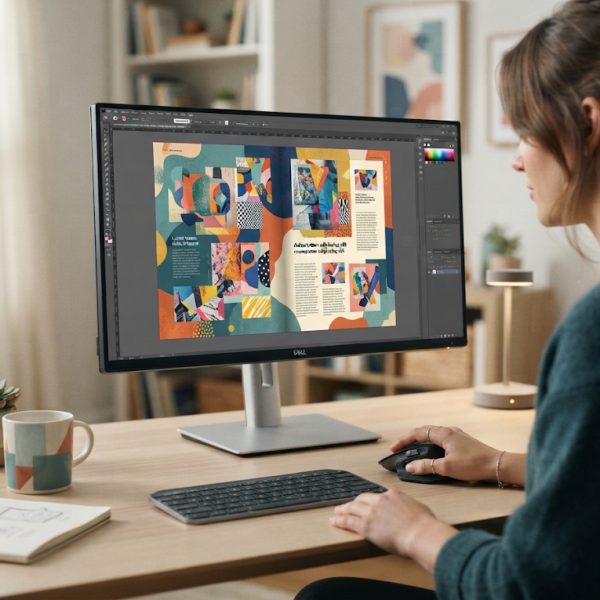
Translating InDesign® projects sounds simple on paper: export the text, send it to a translator, reimport, and you’re done. In reality, this process often turns into a time-consuming, budget-draining nightmare filled with layout breaks, truncated text, and branding inconsistencies. Understanding why these translations fail, and how to fix them, is critical if you want your multilingual layouts to look as polished and effective as your original designs.
1. Treating InDesign Files Like Plain Text Documents
One of the biggest reasons layout-based translations fail is that companies treat InDesign files like simple Word documents. InDesign layouts are built with layers, styles, frames, anchored objects, and linked assets. Ignoring that complexity leads to broken layouts as soon as translations are imported. Text expansion, hyphenation differences, and script direction (for right-to-left languages) can completely disrupt a design if the underlying structure isn’t respected from the start.
To fix this, translations must be managed by professionals who understand both language and layout. That means working with teams who are familiar with InDesign, translation memory tools, and layout-specific challenges. They should be able to prepare the files properly for translation and reimport the text without destroying your carefully crafted design.
When your translated layouts are part of a broader international strategy, you also need to think beyond the page itself. High-performing multilingual content isn’t just readable; it has to be discoverable in local markets. Combining solid layout translation with global multilingual SEO ensures your localized brochures, catalogs, and digital PDFs actually reach and engage the right audiences in search engines worldwide.
2. Ignoring Text Expansion and Contraction
A sentence that fits neatly in English often won’t fit once it’s translated. German, Russian, and many other languages tend to produce longer strings, while languages like Chinese can appear shorter yet more visually dense. If your original InDesign layout doesn’t account for this expansion and contraction, your translated version will end up with overset text, awkward line breaks, or cramped paragraphs that weaken readability and user experience.
The solution is to build flexibility into your layouts from the beginning: use responsive text frames where possible, allow for additional line spacing, and avoid locking text into tightly constrained shapes. Translators and DTP (desktop publishing) specialists should work together to adjust font sizes, leading, and spacing for each language while preserving brand consistency and visual hierarchy.
3. Not Using Paragraph and Character Styles Correctly
Many InDesign translations fail because the original document is poorly structured. When text is styled manually instead of using paragraph and character styles, every translated segment must be reformatted by hand. This dramatically increases the chance of mistakes: inconsistent headings, wrong fonts, missing bold or italics, and misaligned lists become almost inevitable when every change is manual.
Proper use of styles ensures that translations can be imported cleanly and formatted consistently in all languages. Before sending a file for translation, clean up the source: apply styles across the document, remove local overrides where possible, and organize your style sheets logically. That way, once the translated content is placed, it automatically inherits the right formatting with minimal extra work.
4. Overlooking Language-Specific Typography and Scripts
Typography that works in English doesn’t always work in Arabic, Chinese, Japanese, Korean, or Cyrillic-based languages. Incompatible fonts can cause character substitution, missing glyphs, or broken text rendering. Right-to-left scripts add another level of complexity, affecting not just text direction but also alignment, punctuation placement, and numbering.
To fix this, you must choose fonts that fully support the target languages and script systems. InDesign offers advanced typographic controls for complex scripts, but they need to be configured correctly. Work with linguists and DTP specialists who know how to handle right-to-left settings, language-specific hyphenation rules, and OpenType features, ensuring that every character is displayed accurately and elegantly.
5. Breaking the Translation Workflow with Copy-Paste
A common shortcut is to copy text directly from InDesign and paste it into emails, spreadsheets, or generic documents for translation. This breaks any link between the layout and the text, introduces encoding issues, and increases the chance of content being lost, duplicated, or mistranslated. When the time comes to paste it back, layout issues multiply, and quality control becomes nearly impossible.
Instead, exporting your InDesign content through professional translation workflows (such as IDML export and integration with translation management systems) preserves structure and context. This approach keeps tags, styles, and non-translatable elements intact, allowing linguists to focus on language while DTP experts handle layout reflow. It also enables the use of translation memories and terminology databases, improving consistency and reducing costs over time.
6. Failing to Localize Images, Callouts, and Embedded Text
Even when the main body text is translated correctly, many InDesign projects still fail because images, callouts, charts, and embedded graphics remain in the original language. This disconnect undermines user trust and makes the final document feel partially translated. It’s especially damaging in marketing materials, technical manuals, and training content where every visual element carries meaning.
To prevent this, create a complete localization plan that covers all text-bearing assets: captions, infographics, diagrams, UI screenshots, icons with labels, and even logos with taglines. Maintain layered, editable source files (such as layered PSDs or AI files) so that text in visuals can be localized professionally. Align that process with your InDesign workflows so the final document looks truly native in every language.
7. Skipping Linguistic and Layout Quality Assurance
Many teams assume that once the translation is inserted into InDesign, the job is done. This is where most failures become visible: line breaks in the wrong place, words split incorrectly, overlapping text and images, or even critical information cut off entirely. Without thorough linguistic and layout QA, these errors often go unnoticed until after publication or printing, when they are expensive and embarrassing to fix.
A robust QA phase should include language review in-context (inside the actual layout), proofreading by native speakers, and visual checks by DTP specialists. Test print or export PDFs for each language, verify links, indices, and cross-references, and ensure that all sections are complete. This final step is non-negotiable if you want your multilingual materials to reflect the same professionalism as your original content.
Conclusion: Turning InDesign Translation into a Strategic Asset
InDesign translations fail when they are treated as a simple linguistic task instead of a combined language, design, and technical process. Poor file preparation, weak typography choices, broken workflows, and missing QA are responsible for most of the headaches companies face with multilingual layouts. By addressing these issues systematically—using structured files, translation-aware workflows, language-appropriate fonts, and rigorous layout QA—you can transform InDesign translation from a recurring problem into a strategic asset.
When done right, translated InDesign projects don’t just look good; they amplify your message in every market you serve. Investing in specialist teams and integrated processes ensures consistency, protects your brand image, and helps your content perform better across languages and channels, both online and offline.